Tang Nano 9K Unboxing and First FPGA Blink Test

Introduction

When studying electronics and working in the electronics field, you eventually encounter a wide range of technologies.

From hardware design to software (firmware) coding, and even automation machinery, there are many areas to explore.

Of course, it is impossible to master everything, but developers naturally continue expanding their knowledge step by step.

This time, I decided to explore FPGA, an area closely related to semiconductor design, for the first time.

Recently, I purchased the Tang Nano 9K board by Sipeed

and went through the entire process from unboxing and development environment setup
to running the most basic LED Blink test.

This article is both a beginner’s FPGA learning record and a practical hands-on experiment log.

Why Start Learning FPGA?

Why I Decided to Learn FPGA
Until now, I have worked on many MCU-based projects.

However, as projects became larger and the amount of processing handled by a single MCU increased,

I began experiencing situations where the overall system efficiency — including speed and stability — gradually decreased.

To improve this, I also experimented with reducing CPU load by actively utilizing hardware modules inside the MCU, such as DMA.

In practice, this approach provided some improvement, but from the perspective of high-speed processing and parallel processing,
there were still structural limitations.

I concluded that FPGA could be an alternative capable of overcoming these limitations,
and I decided to learn it directly and explore how it could be applied to future projects.

Difference Between MCU and FPGA

Both MCU (Microcontroller Unit) and FPGA (Field-Programmable Gate Array) are widely used in embedded systems, but their operating principles are fundamentally different.

An MCU works by sequentially executing program code using an internal CPU.

A single CPU processes instructions rapidly while improving efficiency through peripherals such as interrupts, DMA, and timers.

This approach has a simple structure, is relatively easy to develop, and is suitable for most control systems.

In contrast, an FPGA does not operate by executing CPU instructions.
Instead, the user directly configures the hardware logic itself.

In other words, logic designed in Verilog or VHDL is implemented as actual digital circuitry, allowing multiple operations to run simultaneously in parallel.

For example, while an MCU rapidly switches between multiple tasks, an FPGA can allow each task to operate independently at the same time.

This difference becomes a major advantage in high-speed data processing, precise timing control, and large-scale parallel processing.

Of course, FPGA design is generally more difficult than MCU development, and the debugging process is also quite different, creating a higher barrier to entry.

However, as system size increases and real-time performance and parallelism become more important, the advantages of FPGA become increasingly clear.

This Tang Nano 9K experiment can also be seen as a first step toward directly experiencing these differences.

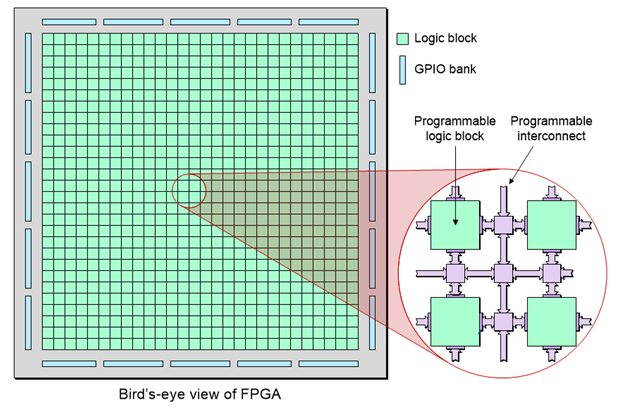
The above diagram was taken from Lattice Semiconductor’s “What is an FPGA?” material and is helpful for understanding the internal structure of an FPGA.

More detailed information can be found through the link below.
What is an FPGA?

Although the diagram comes from material provided by Lattice Semiconductor, the FPGA used in the Tang Nano 9K can also be considered to have a fundamentally similar internal architecture.

Why I Chose the Tang Nano 9K

In reality, FPGA is not an easy field for general electronics developers to approach.

In particular, development boards from major FPGA manufacturers such as Intel (formerly Altera) and AMD (formerly Xilinx) are often relatively expensive, which can make beginners hesitate before getting started.

On the other hand, the Tang Nano 9K is relatively affordable (approximately 20–25 USD), making it less burdensome as a first FPGA learning platform.

I felt it was a suitable beginner board because it allows users to experience a real FPGA development environment and directly practice everything from Verilog design to bitstream download without a large financial investment.

Tang Nano 9K Unboxing

Checking the Package Contents

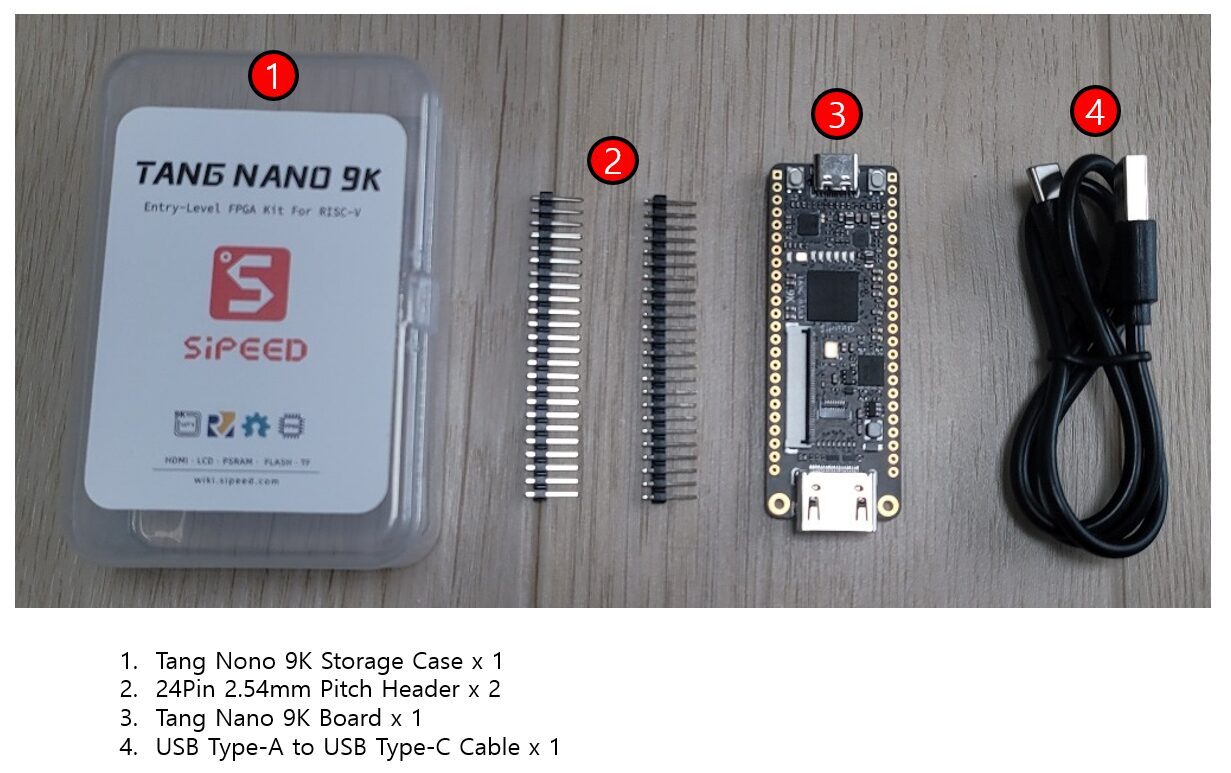
The Tang Nano 9K package contains the components shown below.

The package contents are simple, but they are sufficient for starting FPGA learning.

Since the basic board, pin headers, and USB cable are all included, it is possible to begin experimenting immediately without requiring additional preparation.

There is also a version of the package that includes an LCD module, but this time I selected the standard version without the LCD in order to focus on basic FPGA learning.

Exploring the Board

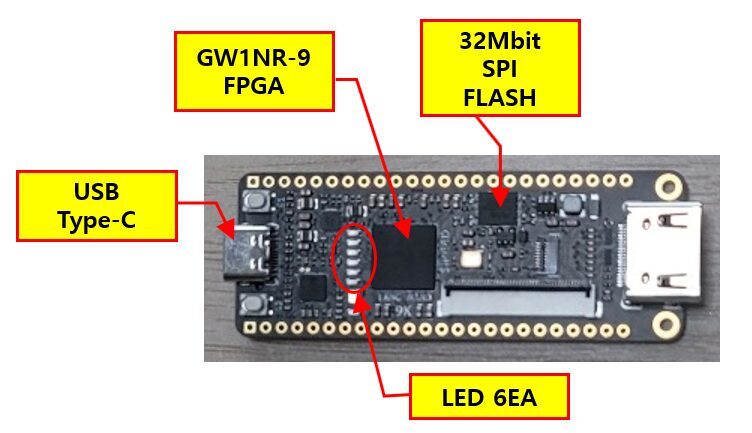
The external appearance of the board is shown in the figure below.

Although many components are mounted on the board, for this experiment it is enough to understand the four main parts highlighted in the image.

The GW1NR-9 is the core FPGA chip where the actual Verilog logic is implemented.

The board also includes six user LEDs, and in this experiment we will implement the most basic LED blink test.
When GPIO is configured as an output in an FPGA, LED blinking is one of the most intuitive ways to verify operation.

The USB Type-C port is used both for board power and FPGA programming.
Since the board can be connected directly to a PC without requiring an external JTAG programmer, it is very convenient for beginners.

The SPI Flash is non-volatile memory used to store FPGA configuration data.
If the design is downloaded only into SRAM, the configuration disappears when power is turned off. However, when stored in Flash memory, the FPGA automatically reloads the configuration after power-up.

It is also a good idea to solder the included pin headers in advance so the board can easily be used with a breadboard for future experiments.

Summary of Main Specifications

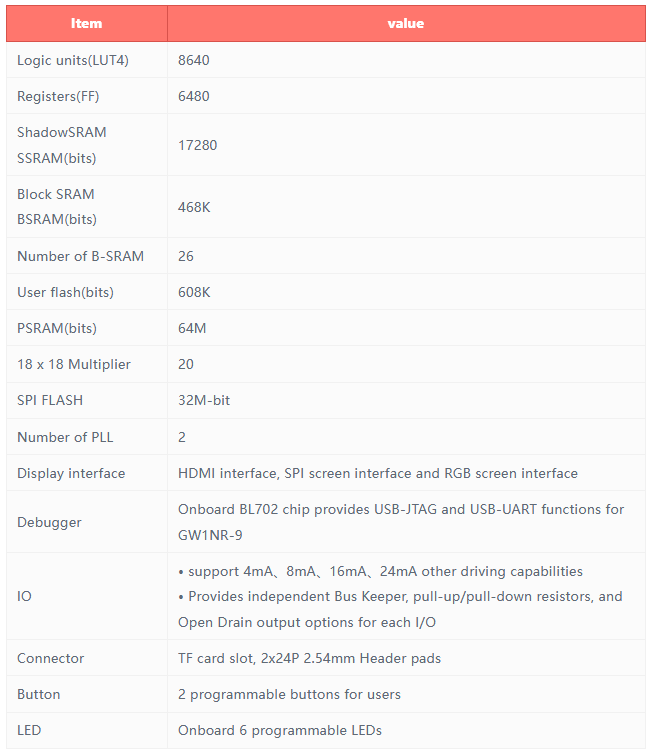
The table below summarizes the main hardware specifications of the Tang Nano 9K.

Although the Tang Nano 9K is designed as an entry-level board, it includes most of the essential features needed for FPGA learning.

In particular, features such as user LEDs, SPI Flash, PLL, and GPIO are provided by default, making the board suitable not only for simple LED blink tests but also for expanding into experiments involving UART, SPI, and PWM.

Another major advantage for beginners is that development can be done using only a USB connection without requiring a separate external download/programming device.

From the perspective of someone learning FPGA for the first time, I think this scale of device is more suitable for understanding the structure and practicing development than starting immediately with a very large FPGA.

More detailed information can be found on the Sipeed Wiki page.
Tang Nano 9K Sipeed Wiki

Development Environment Setup

Installing Gowin EDA

To use the Tang Nano 9K, the first step is to install the FPGA development tools.

Since the Tang Nano 9K uses a FPGA from Gowin Semiconductor, the official development environment, Gowin EDA, must be used.

Gowin EDA is an integrated development environment that supports synthesizing HDL code written in Verilog or VHDL, performing Place & Route, and downloading the resulting design into the FPGA.

Gowin EDA can be downloaded from the official GOWIN EDA Home page.

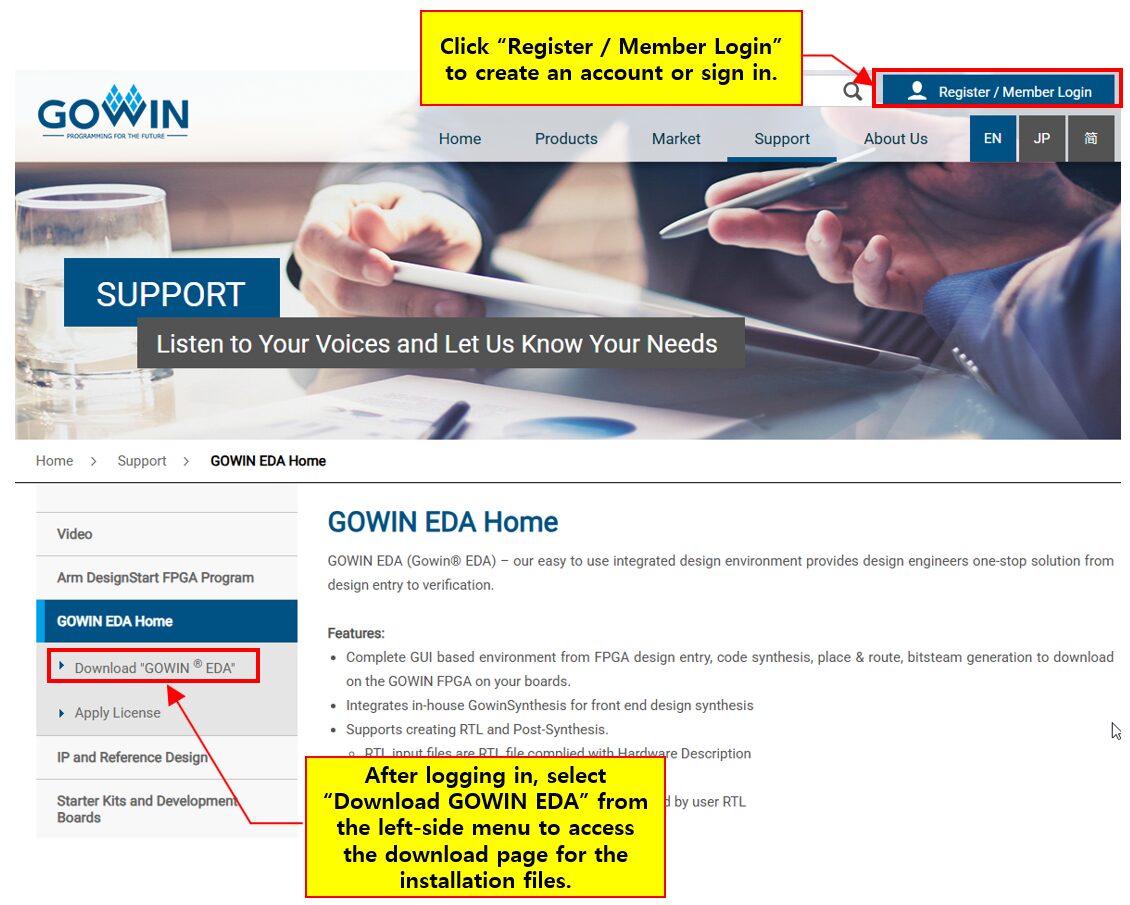
If this is your first visit, you will need to create an account first by selecting Register.

After signing up and logging in, the installation files can be downloaded from the Gowin EDA page under the Support menu.

As shown in the figure below, after clicking “Register / Member Login” and signing in, select the “Download GOWIN EDA” item from the left-side menu to download the installer.
The software is available in both Windows and Linux versions, so you can simply choose the version that matches your operating system.
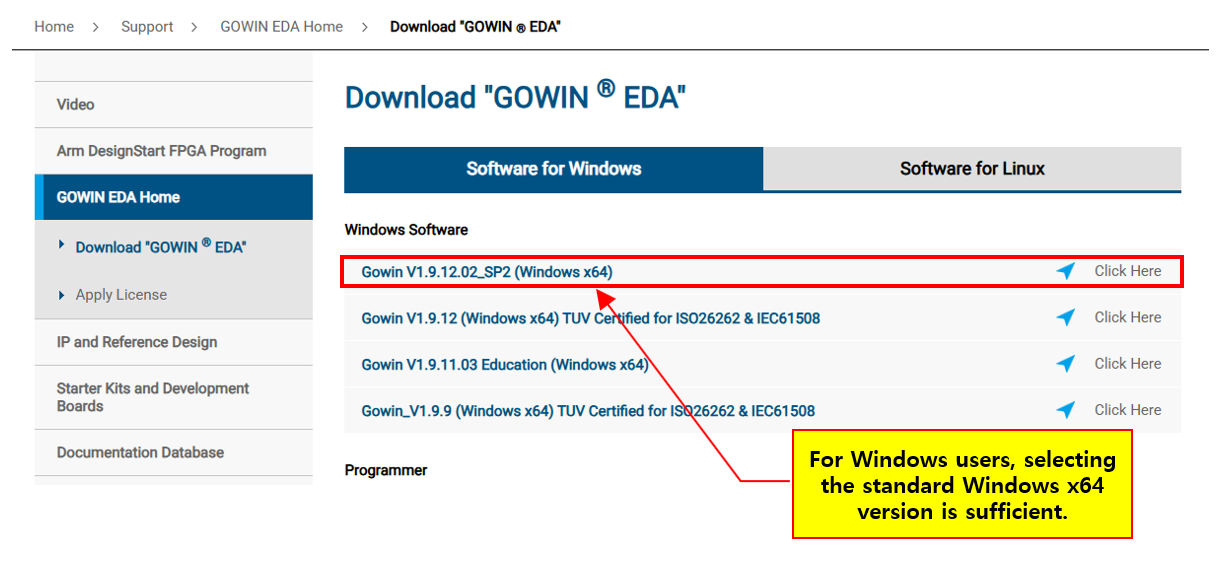
After downloading the installer, the setup process can be completed in the same way as a typical Windows application installation.

Once installation is complete, all development steps — including project creation, synthesis, Place & Route, bitstream generation, and FPGA download — can be performed within a single integrated environment.

For this LED Blink experiment, the default installation settings are sufficient.
In the next step, we will proceed with the license activation process.

License Activation Process

After installing Gowin EDA, a license must be registered before the software can be used normally.

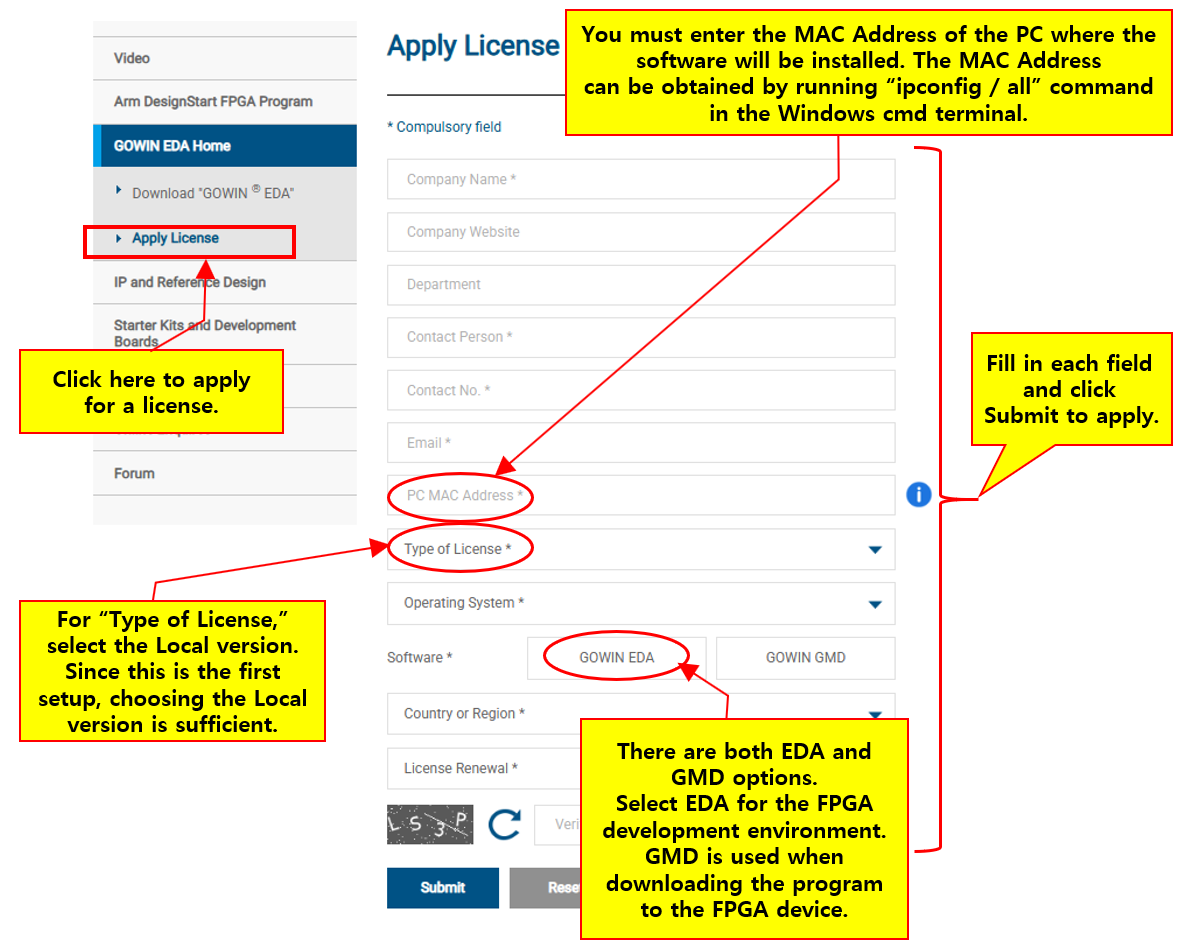
If you select the “Apply License” menu on the left side of the Gowin Semiconductor website, the license request page will appear.

During the license application process, you must enter the MAC Address of the PC where Gowin EDA will be installed.

In Windows, you can check the MAC Address by running the following command in the Command Prompt (cmd):

ipconfig /all

Although several fields must be filled out in the application form, the default settings are generally sufficient for beginners.

In particular, pay attention to the following items:

  • Type of License
    → For first-time users, selecting the Local License option is usually sufficient.
  • Software
    → Select Gowin EDA.
    → Gowin GMD is a separate download/debugging utility.

After filling in all required fields, click the Submit button to complete the license request.

The license file will later be delivered to the registered email address, and after registering it in Gowin EDA, the development environment can be used normally.

It is often said that the license is issued within about one hour, but in my case it took around three days.
I submitted the request on Friday and received it on Monday.

Rather than being a fully automatic system, it felt more like a process that required manual review and approval by a staff member.

Creating and Downloading the First Verilog Project

Creating a Project

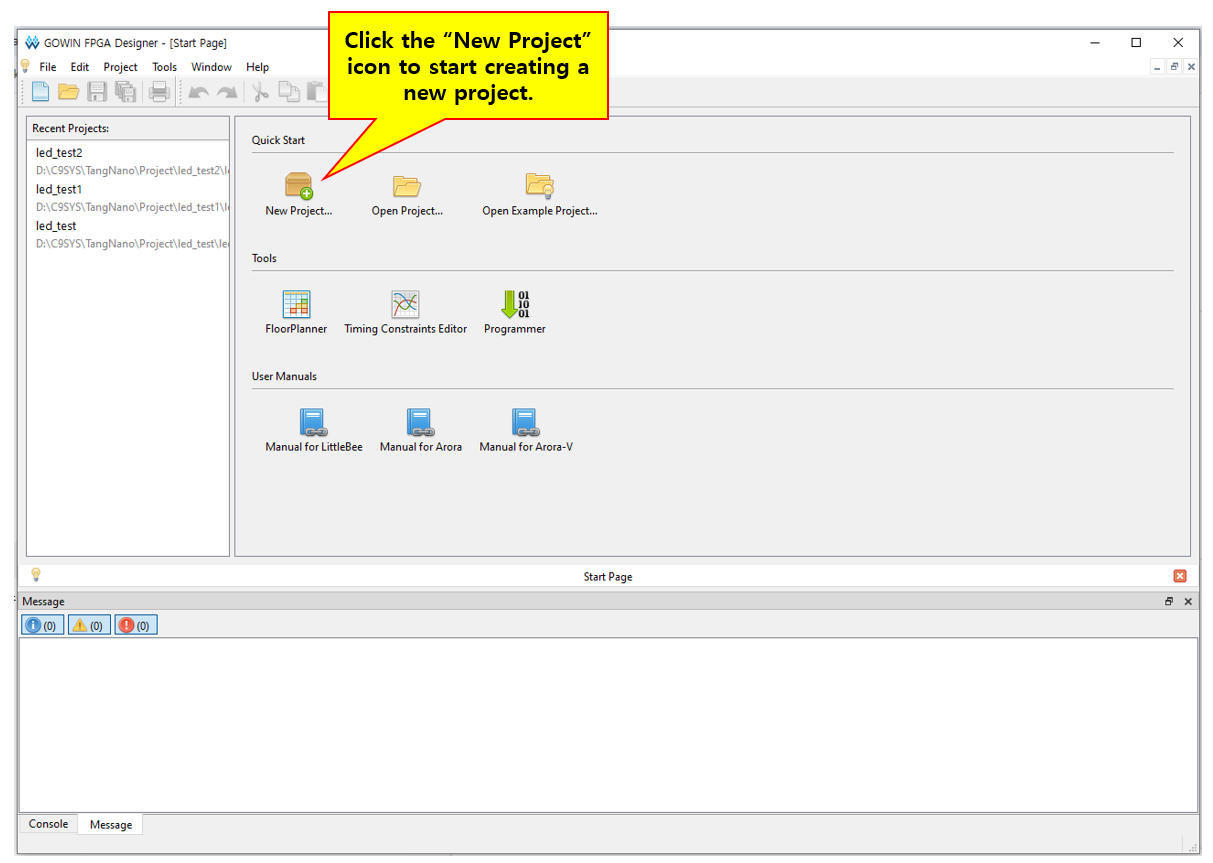
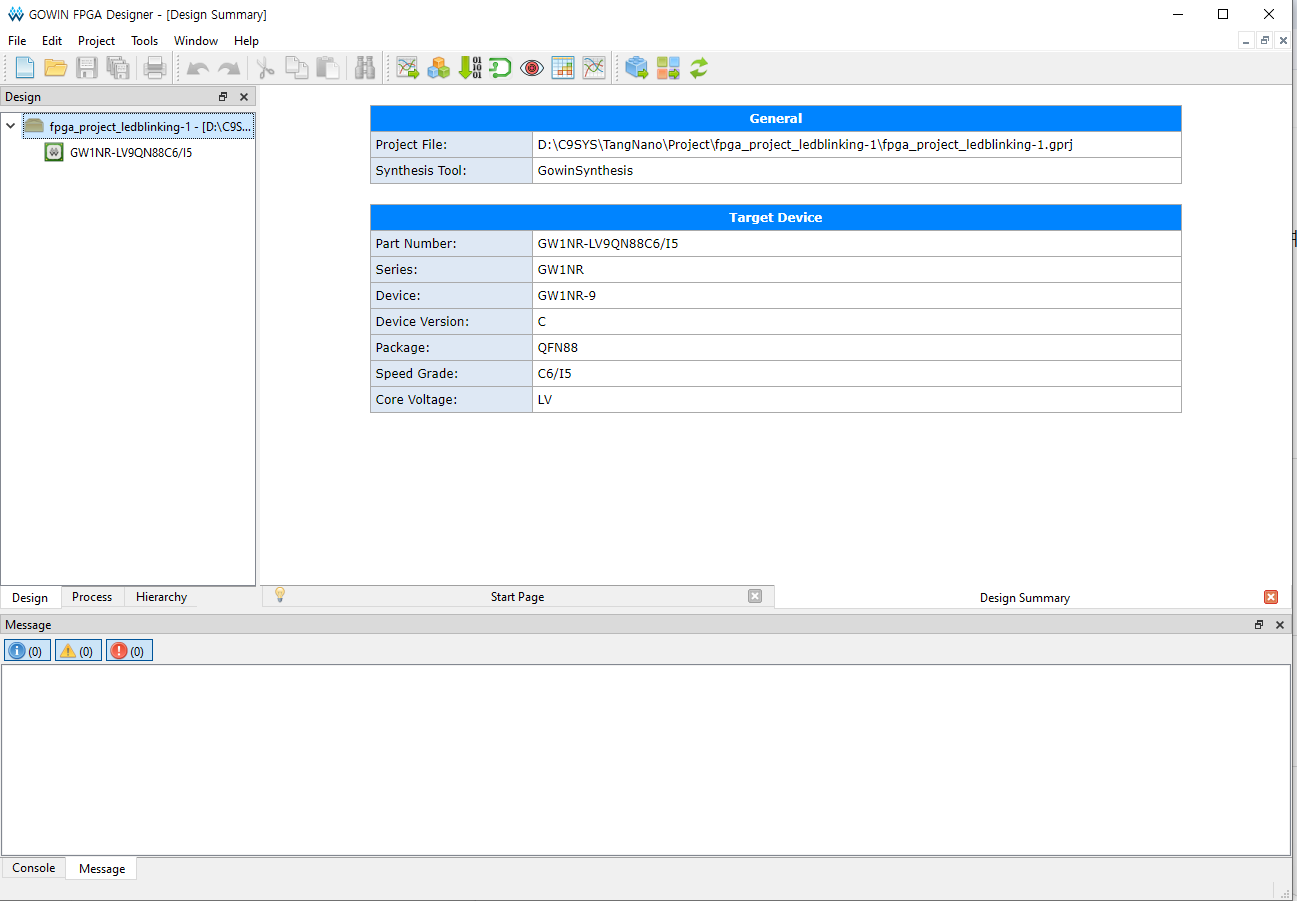
When Gowin EDA is launched, a start screen similar to the one below appears.
The actual application name is displayed as “GOWIN FPGA Designer.”

In this experiment, I used version V1.9.12.02_SP2 (64bit) build 85219.

To create a new project, select the “New Project” icon in the Quick Start section.

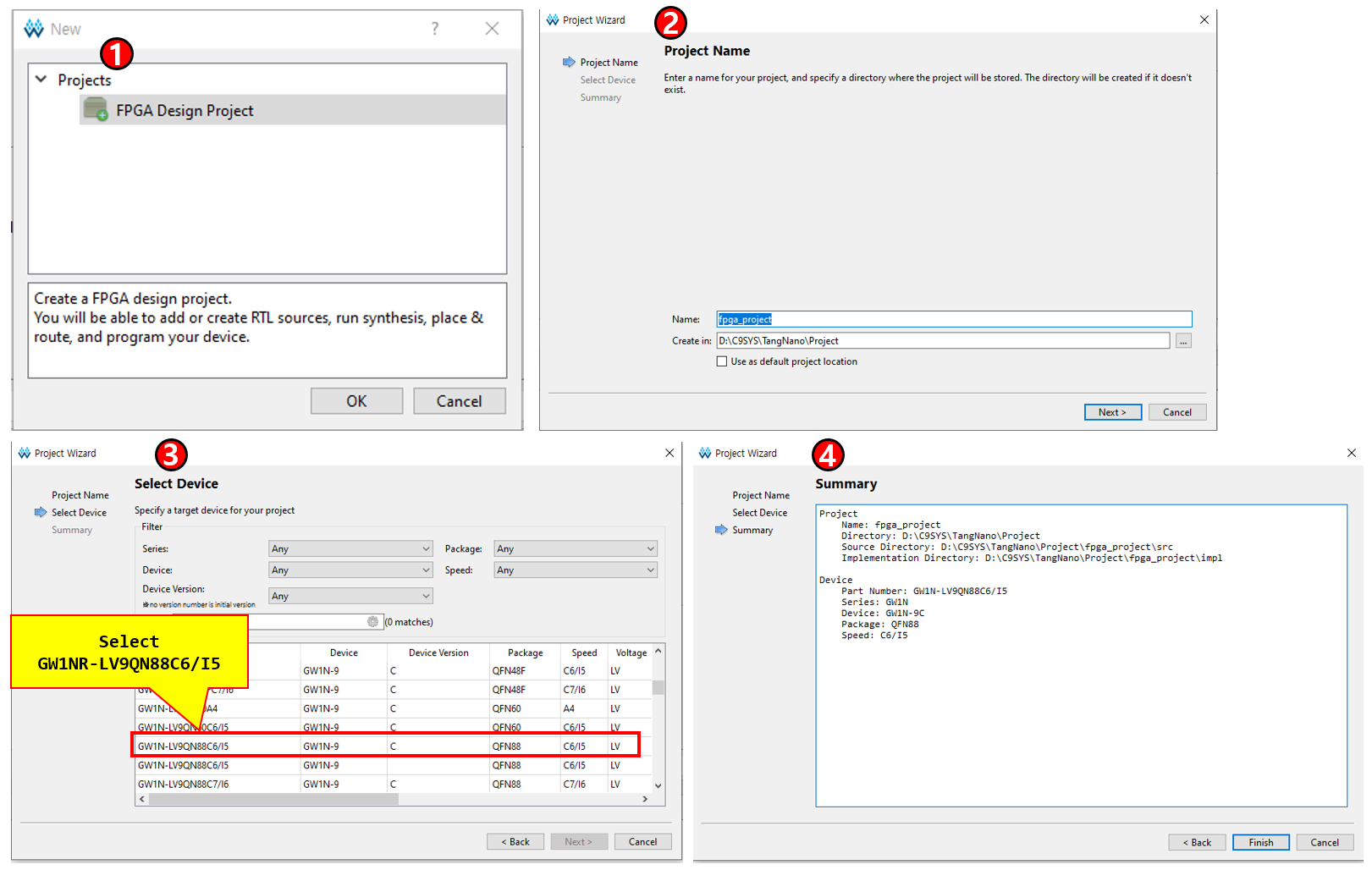
After that, the project is created through four steps:

  1. Selecting the FPGA Design Project type
  2. Setting the Project Name and Location
  3. Selecting the Device
  4. Reviewing the Summary

Since the Tang Nano 9K uses the GW1NR-LV9QN88PC6/I5 device, it is important to select the correct FPGA device.

In the final Summary step, you can review and confirm all project settings before the project is created.

When you click the “Finish” button at the bottom of the Summary screen, the project is created and a screen similar to the one below appears.

At this point, the project creation process is complete.
I named the project fpga_project_ledblinking-1.

Writing top.v

Now it is time to write actual Verilog code and implement an LED Blink function on the FPGA.

In FPGA projects, a top-level module is generally required.
In this experiment, we will create a top.v file to implement the most basic LED blink behavior.

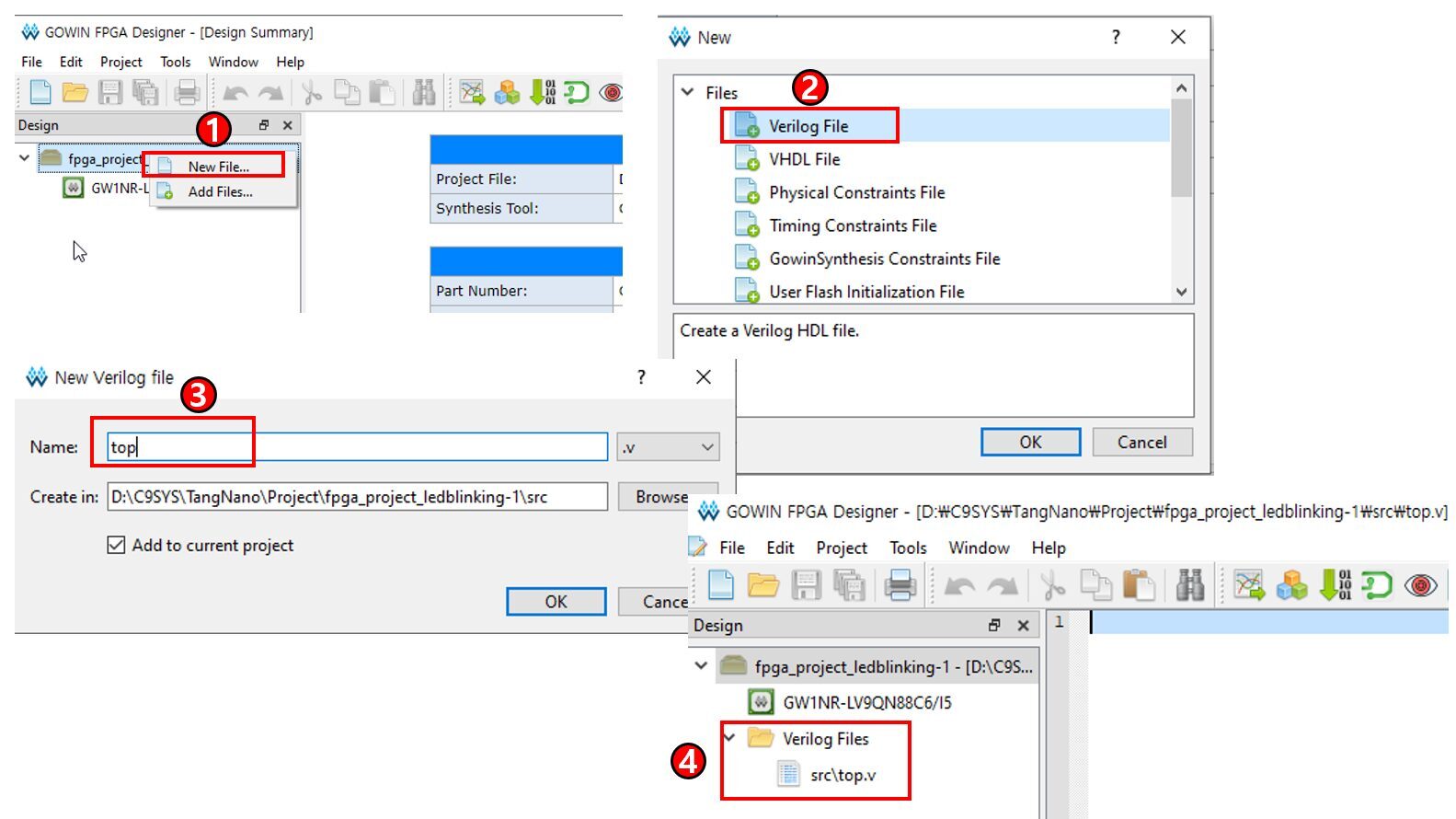
The top.v file can be created using the following steps:

  1. Right-click inside the project window and select New File.
  2. Select Verilog File as the file type.
  3. Enter top.v as the file name.
  4. After creation is complete, the top.v file will appear under the Verilog Files section in the project tree.

You can then double-click the top.v file to open the editor window and begin writing Verilog code.

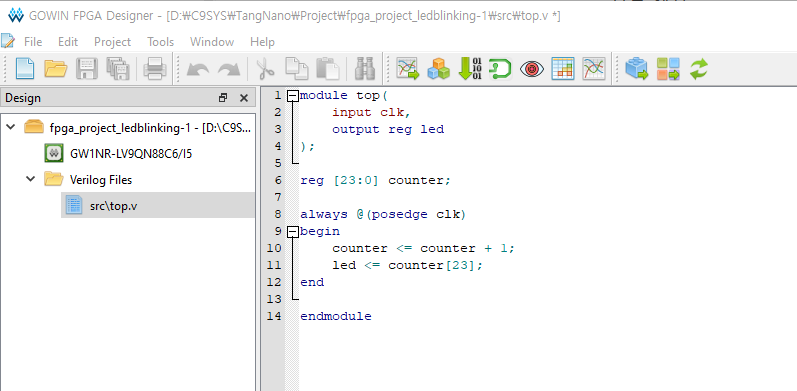
Enter the code in the top.v editor window as shown below.

The code above is a very basic Blink example that continuously increments a counter inside the FPGA and uses a specific bit value, counter[23], as the LED output.

The counter value keeps increasing according to the clock, and the upper bits change relatively slowly.
As a result, the LED appears to blink at a regular interval.

In FPGA design, clock-based behavior can be implemented in this way.

After entering the code, save it with Ctrl + S so it is reflected in the project.

Writing the Constraint File

In FPGA development, the actual pin connections are not determined by Verilog code alone.

Therefore, a Constraint file must be created to connect the clk and led signals to the real FPGA pins.

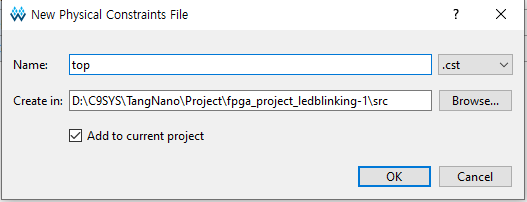
First, right-click inside the project window and select New File.

Then select Physical Constraints File as the file type to create the Constraint file.
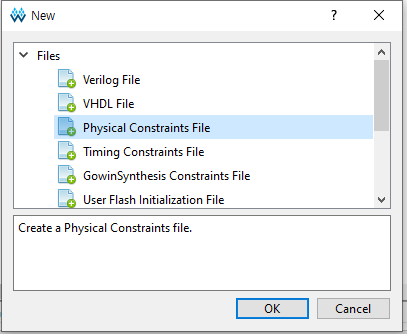
Set the file name to top so that it matches the Verilog file name.

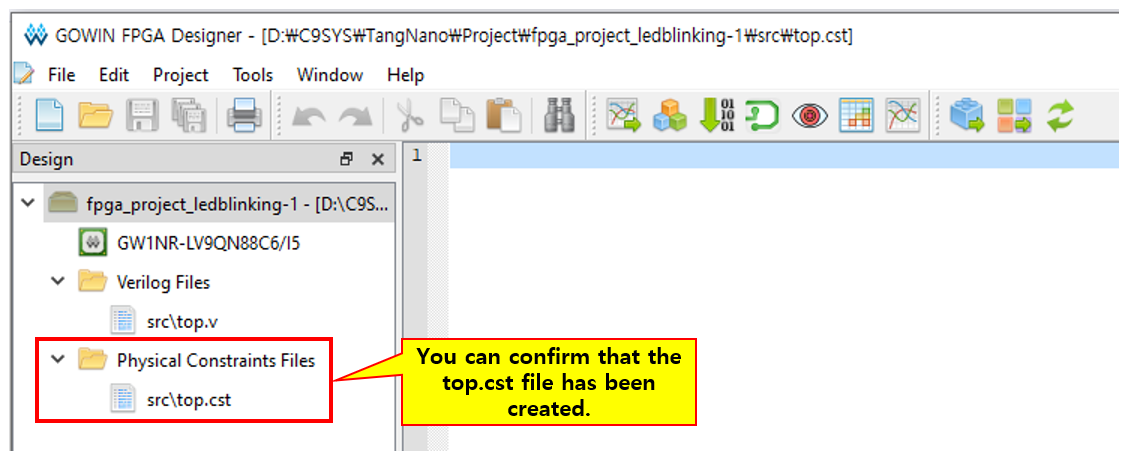
After clicking the OK button, you can confirm that the top.cst file has been created under the Physical Constraints Files section in the left-side Design window.

Now you can enter the actual Constraint settings.
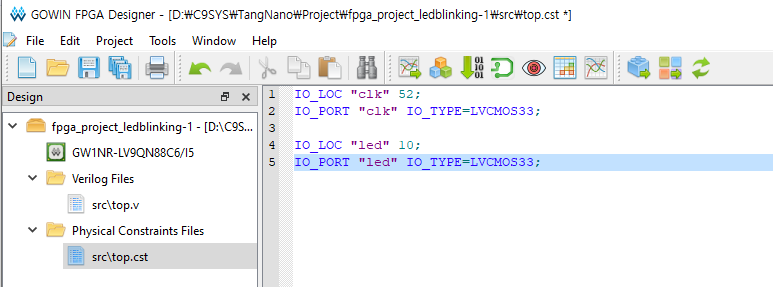
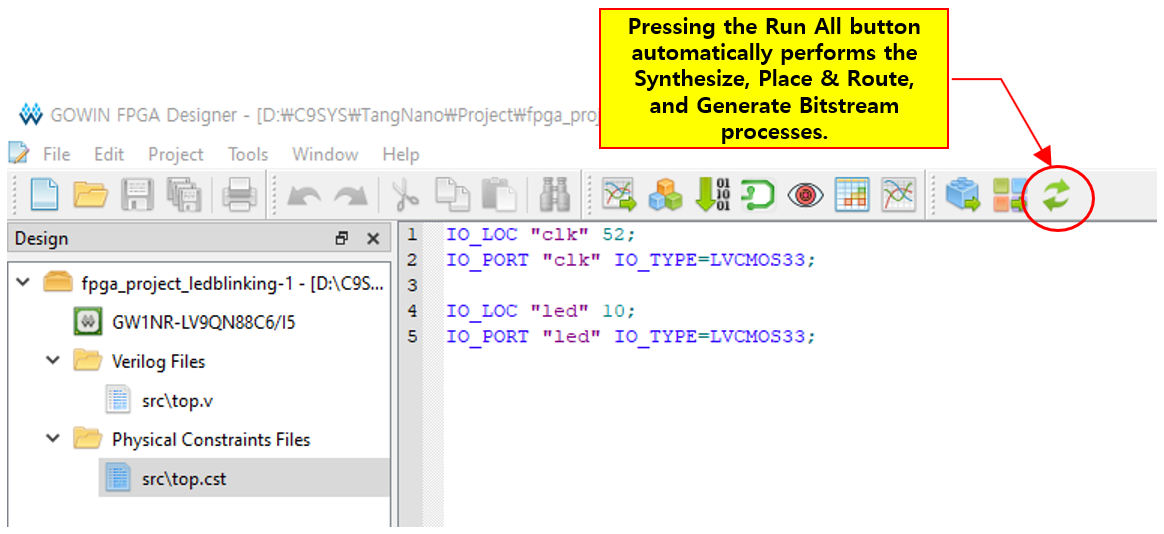
Enter them as shown below.

IO_LOC is used to connect Verilog signals to actual FPGA pin numbers.

In the settings above:

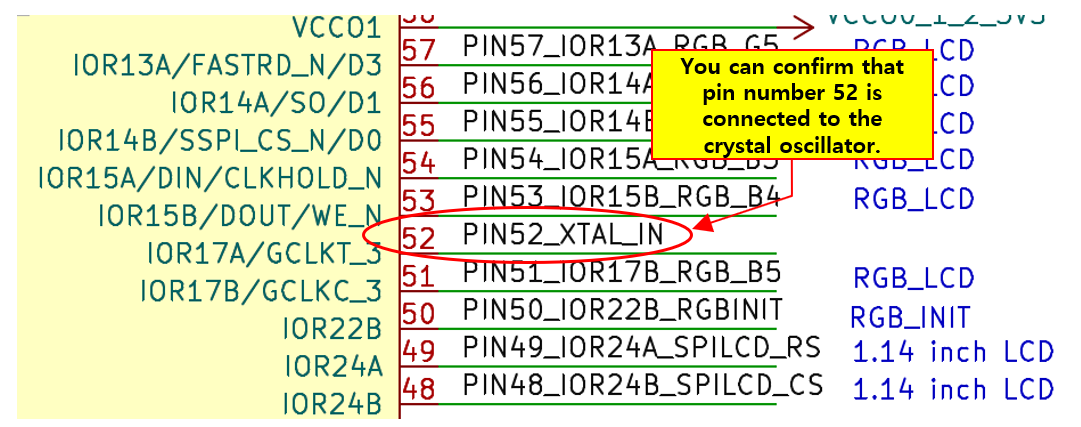
  • The clk signal is connected to FPGA pin 52
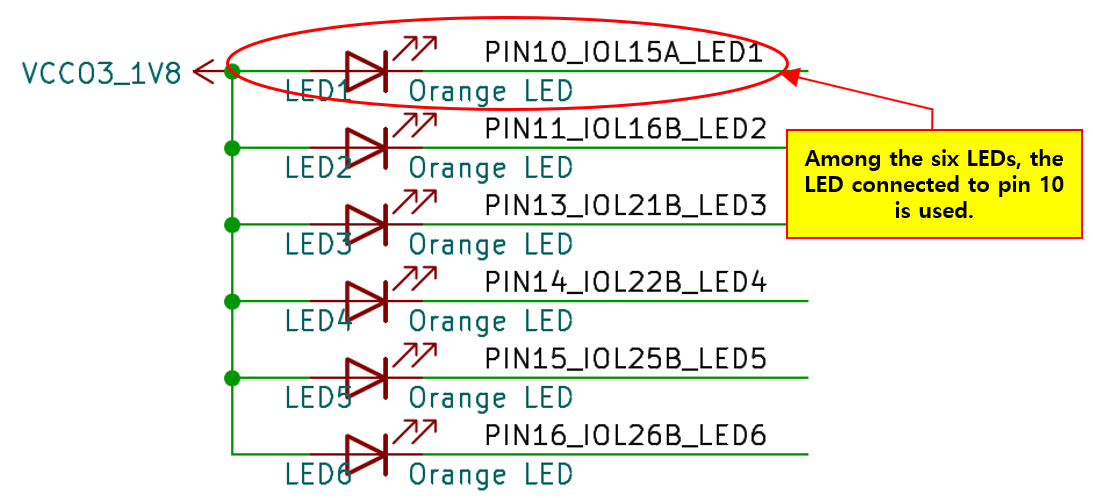
  • The led signal is connected to FPGA pin 10

This means that the signals are physically mapped to those FPGA pins.

The pin numbers can be confirmed from the schematic documents provided on the Sipeed Wiki page.

Below is the relevant portion of the schematic diagram.

In addition, the IO_TYPE=LVCMOS33 setting specifies that the pins should operate using the 3.3V CMOS input/output standard.

The pin numbers were configured by referring to the official Tang Nano 9K pin map documentation.

At this point, both the Verilog code and the actual FPGA pin connection settings are complete.

In the next step, we will generate the Bitstream and download it to the FPGA.

Generation and Downloading the Bitstream

Once both the Verilog code and Constraint settings are complete, the next step is to generate the Bitstream file that will be downloaded into the FPGA.

First, execute the following steps in order from the Process window on the left side:

  1. Synthesize
  2. Place & Route
  3. Generate Bitstream

Alternatively, you can use the Run All button from the top menu to execute the entire process at once.

In FPGA development, the build process generally proceeds in the following order:

  • Synthesize
    → Converts the Verilog code into actual logic circuitry.
  • Place & Route
    → Places the FPGA logic blocks and routing resources into the actual device structure.
  • Generate Bitstream
    → Generates the Bitstream file used to program the FPGA.

If the build process completes successfully, the Bitstream file is generated without errors.

However, in the current state, an error appears as shown below, and the Bitstream file is not generated.

Expression size 25 truncated to fit target size 24

This warning occurs because there is a size difference between the counter variable and the numeric constant.
In this experiment, it does not cause a major problem.

However, the important part is the ERROR message.
As shown in the figure above, two errors occurred, and these are related to shared pin settings.

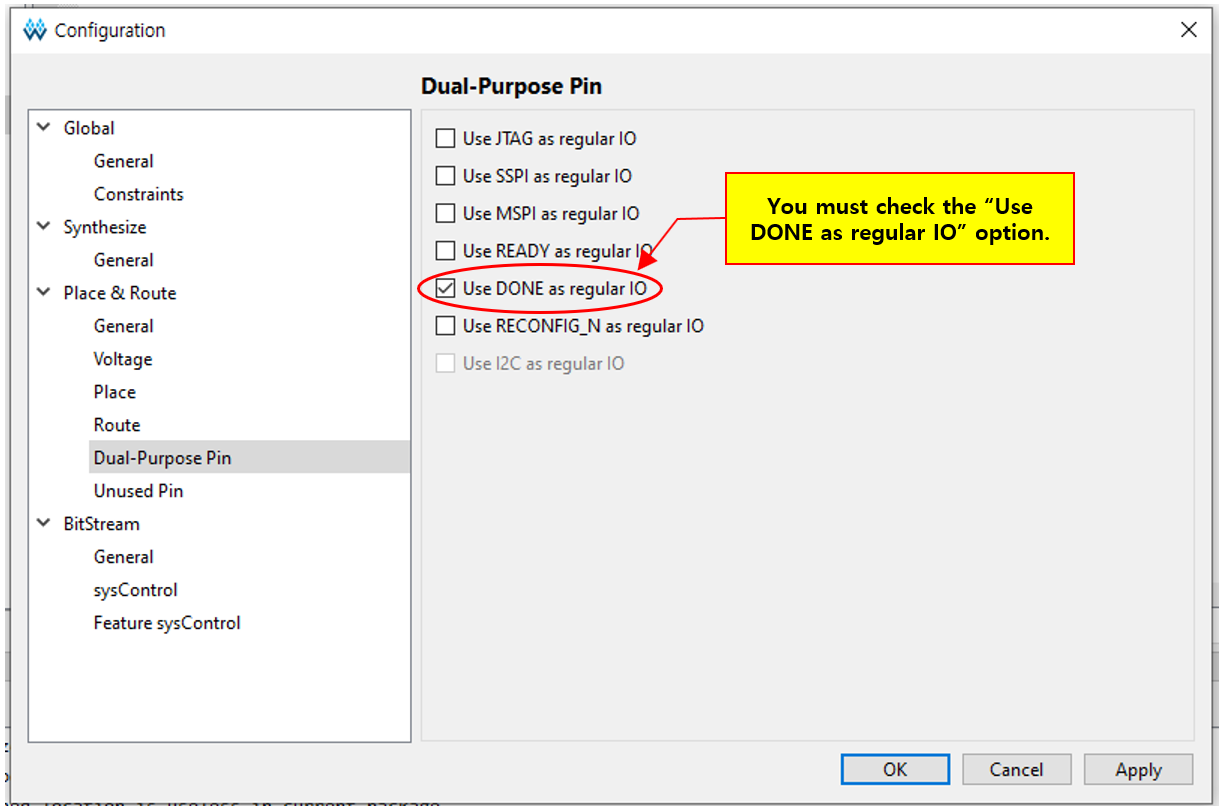
Since LED1 on the Tang Nano 9K uses a pin shared with the FPGA DONE function, it cannot be used as a normal GPIO under the default settings.

Therefore, the following option must be enabled:

  • Project → Configuration
  • Place & Route
  • Use DONE as regular IO

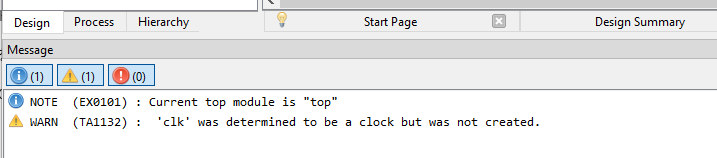
After enabling the option above and running Run All again, the errors disappear and only a warning message remains, as shown below.

However, this warning does not significantly affect the current LED blink test, so it can safely be ignored for now.

In other words, once there are no errors, the Bitstream is generated and the design is ready to be downloaded.

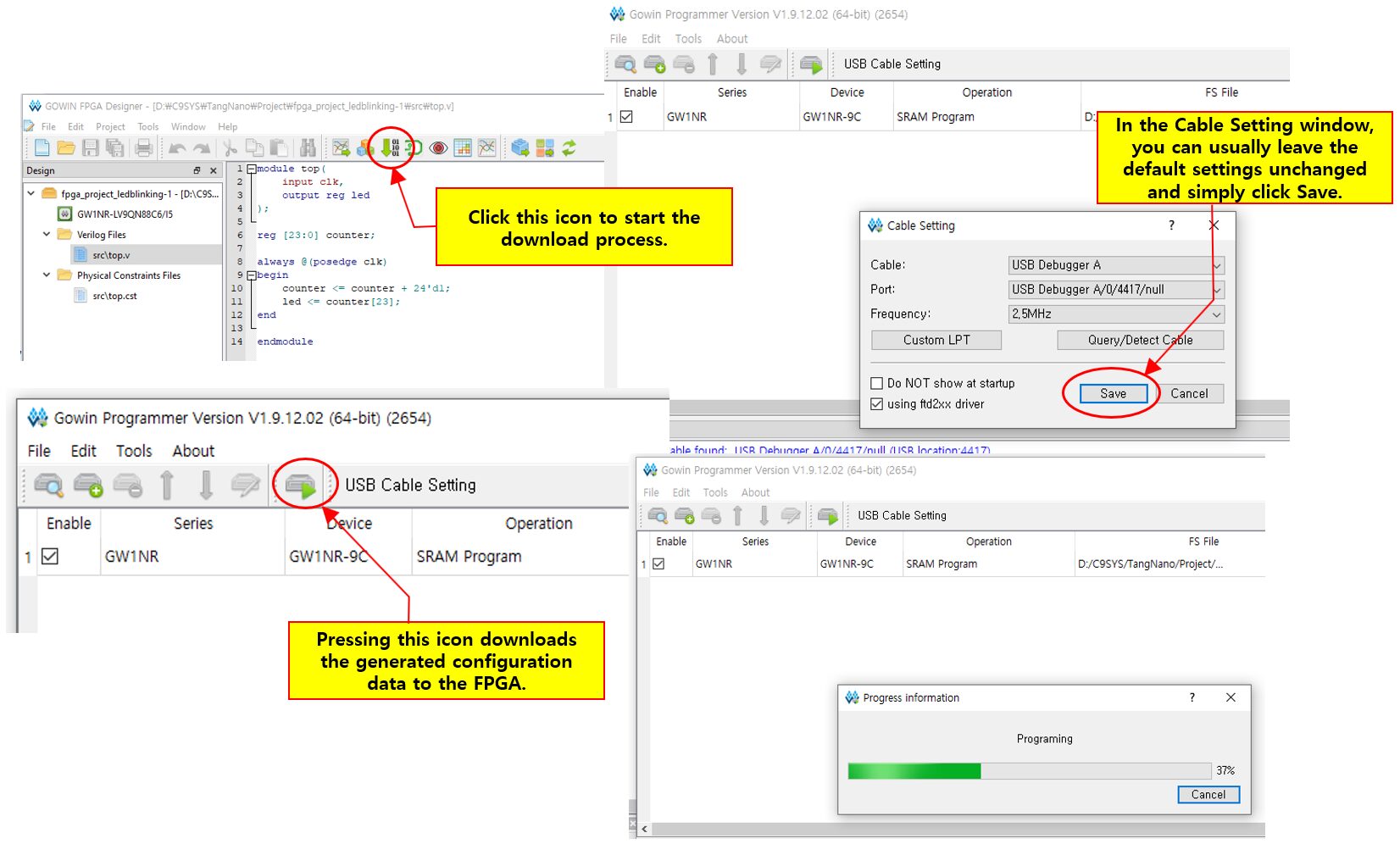
Next, run Programmer from the top menu to download the Bitstream to the FPGA.

The Tang Nano 9K can be programmed simply through a USB Type-C connection, so no separate external JTAG programmer is required.

In the download window, you can choose between SRAM download and Flash download.

  • SRAM Download
    → Operates only while power is applied
    → Configuration disappears when power is turned off
  • Flash Download
    → Stores the configuration in SPI Flash memory
    → Automatically runs again after power-up

For the first experiment, using the SRAM download method is sufficient because it allows quick testing.

Initially, pin 10 corresponding to LED1 was used, but since this pin is shared with the DONE function, LED blinking may not operate correctly depending on the configuration settings.

Therefore, in this experiment, testing was performed using LED2 (pin 11), which can be used directly as a normal GPIO.

When using pin 11, the Use DONE as regular IO option does not need to be enabled.

The final Constraint settings are shown below:

IO_LOC "clk" 52;
IO_PORT "clk" IO_TYPE=LVCMOS33;

IO_LOC "led" 11;
IO_PORT "led" IO_TYPE=LVCMOS18;

Once the download is complete, the FPGA immediately begins operating, and the selected LED can be seen blinking periodically.

Saving the Bitstream to Flash Memory

So far, the Bitstream has been downloaded and executed using the SRAM method.

The SRAM download method is convenient for testing, but because the FPGA configuration disappears when power is turned off, the Bitstream must be downloaded again each time.

Therefore, if you want the FPGA to start automatically even after power cycling, the Bitstream must be stored in Flash memory.

Flash programming can be performed using the following steps:

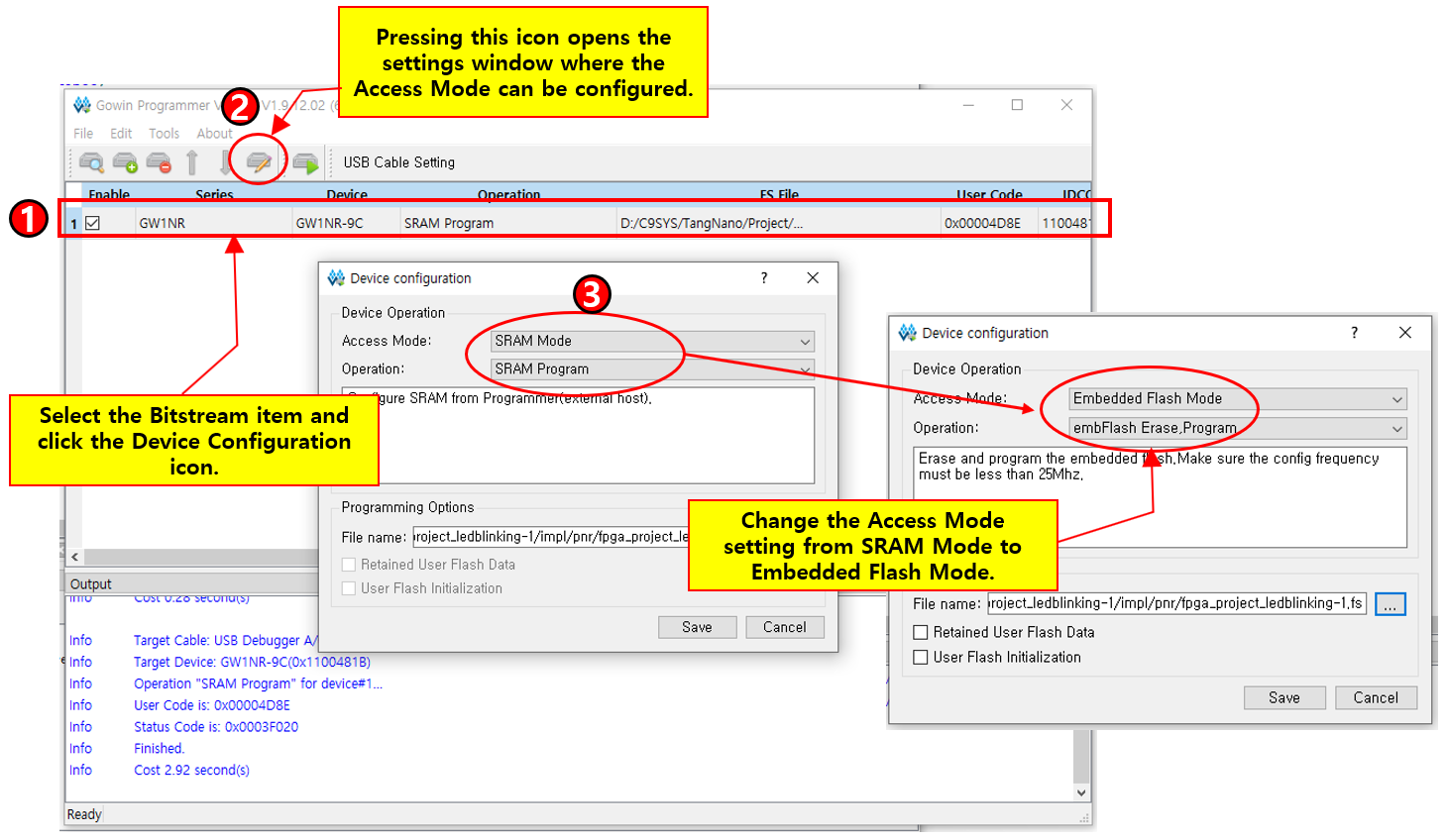
  1. Select the Bitstream item to download.
  2. Click the Device Configuration icon in the top menu.
  3. Change the default SRAM Mode setting to Embedded Flash Mode.

After this change, you can confirm that the Operation field is automatically changed to Flash Programming mode.

Once the configuration is complete, click the Save button and download the Bitstream again.
The Bitstream will then be stored in the SPI Flash memory.

Now, even if power is turned off and turned on again, the FPGA will automatically load the Bitstream and continue running the LED Blink function.

Conclusion and First Impression

Through this experiment using the Tang Nano 9K, I was able to directly experience the entire FPGA development flow — from setting up the development environment and writing Verilog code to configuring Constraints, generating the Bitstream, and downloading it to the FPGA.

As someone encountering FPGA for the first time, it felt quite different from traditional MCU development.

While MCUs are generally based on sequential software execution, FPGA development gave a much stronger impression of directly constructing actual hardware logic.

In particular, it was interesting that not only Verilog code but also Constraint files are required to connect signals to real FPGA pins.

I also encountered practical issues that could only be solved by understanding the actual hardware structure of the board, such as the DONE shared-pin problem.

Although this experiment was only a very basic LED Blink test, I believe it served as an excellent starting point for understanding the overall FPGA development process.

Despite its relatively low cost, the Tang Nano 9K includes many of the essential features needed for FPGA learning, and the ability to download designs directly over USB was especially convenient for beginners.

Going forward, I plan to experiment with additional FPGA projects involving UART, SPI, PWM, LCD output, and more.

I also plan to continue exploring how FPGA can be applied to the automation and embedded projects I am currently developing.

I hope this experience can serve as a small reference for others who are considering starting FPGA development for the first time.

댓글 남기기